How to Test If Your Phone Speaker Is Working Properly: Complete Troubleshooting Guide
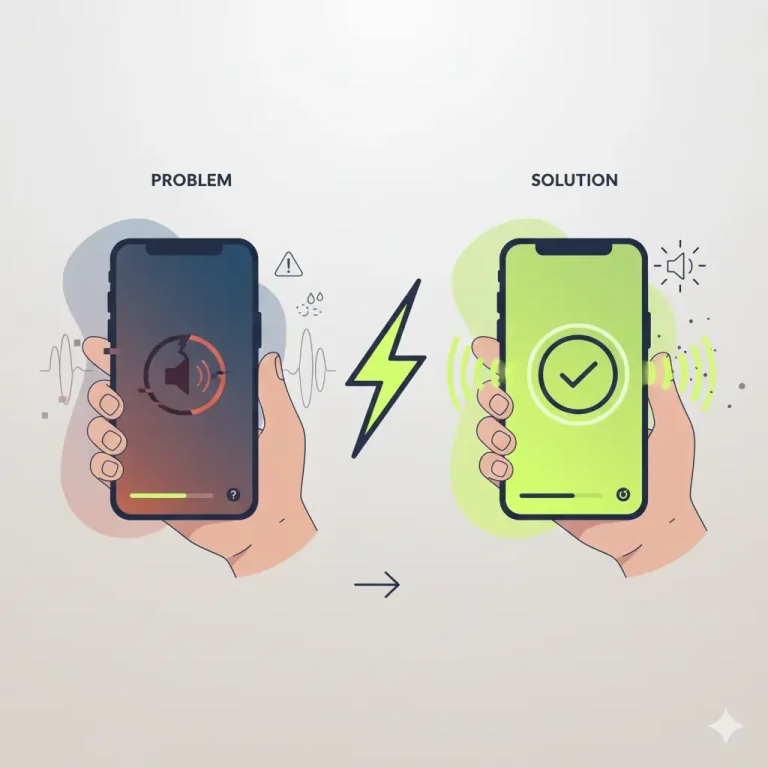
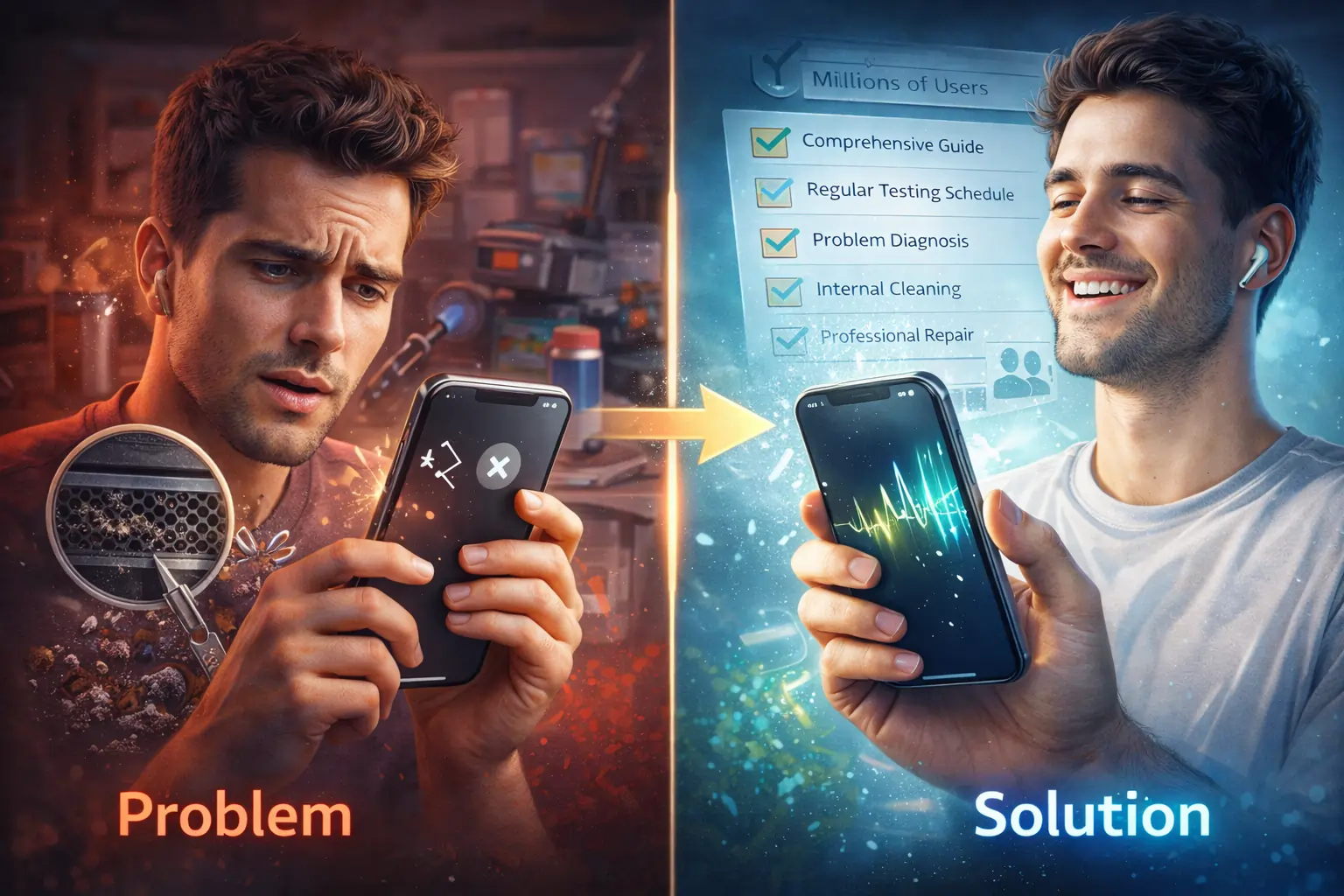
Your phone speaker suddenly sounds muffled, crackling, or won’t produce sound at all? You’re not alone. Speaker issues affect millions of smartphone users daily, whether it’s water damage, debris buildup, or hardware failure. This comprehensive guide walks you through professional testing methods to diagnose speaker problems and restore crystal-clear audio quality.
Understanding Phone Speaker Components and Common Issues
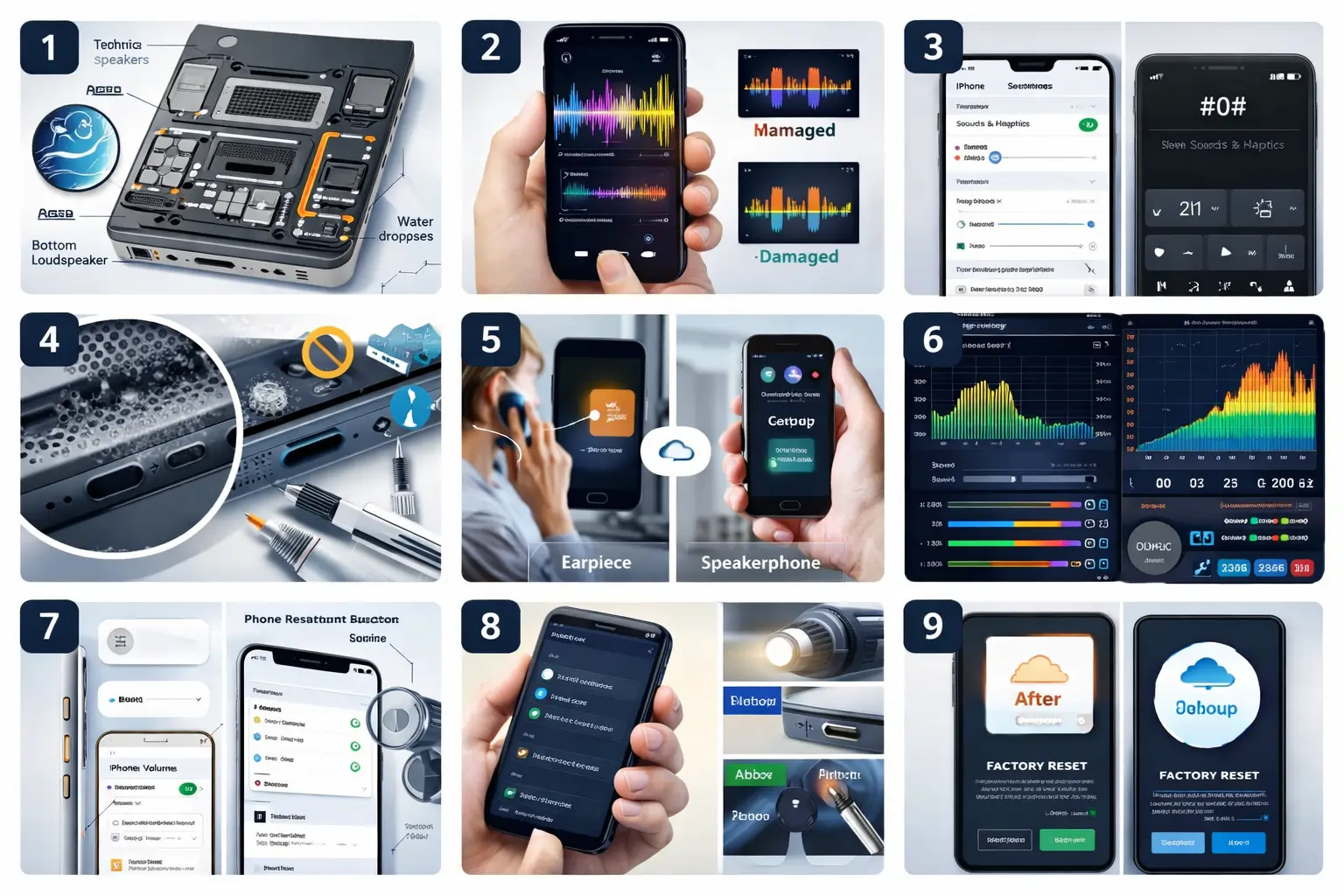
Modern smartphones contain multiple speaker systems serving different purposes. The earpiece speaker handles call audio, while the bottom-firing loudspeaker manages media playback, speakerphone calls, and notifications. Understanding this dual-speaker architecture helps you identify which component needs attention.
Common speaker problems include muffled sound output, crackling or distortion, complete audio failure, reduced volume levels, and intermittent sound cutting in and out. These issues stem from various causes: water exposure, dust accumulation in speaker grilles, software glitches, damaged speaker cones, or blown speakers from excessive volume.
1. Perform a Basic Sound Test
Start with simple audio verification to establish baseline functionality. Open your music app and play a familiar song at medium volume. Listen carefully for clarity, volume consistency, distortion, and balance between left and right channels.
Test different audio types to isolate issues. Play music with strong bass lines, podcasts with clear speech, notification sounds at various volume levels, and ringtones at maximum volume. Each audio type stresses speakers differently, revealing specific failure points.
Pay attention to these warning signs: crackling or popping sounds indicate damaged speaker cones, muffled audio suggests debris blockage or water damage, quiet output even at maximum volume points to software issues or partial speaker failure, and sound cutting in and out reveals loose connections or software bugs.
2. Use Your Phone’s Built-in Diagnostic Tools
Both iPhone and Android devices include native testing capabilities that help identify hardware problems.
For iPhone Users: Navigate to Settings > Sounds & Haptics and adjust the ringer volume slider. You should hear clear chimes from the bottom speaker. Test the earpiece by making a call and listening for clarity. Access additional diagnostics through Settings > Accessibility > Audio/Visual to check audio balance and mono audio settings.
For Android Users: Access the hidden diagnostics menu by dialing *#0*# on Samsung devices (method varies by manufacturer). This opens comprehensive hardware tests including speaker output verification. Navigate to the speaker test option and listen for clear tones from all speaker components.
Alternative Android methods include using Google’s Phone app diagnostics, accessing manufacturer-specific testing modes in Settings, or downloading official diagnostic apps from your device maker.
3. Inspect for Physical Obstructions and Damage
Physical blockages cause 40% of speaker issues. Remove your phone case and examine speaker grilles under bright light. Look for lint, dust, debris, pocket fuzz, dried liquids, and corrosion around ports.
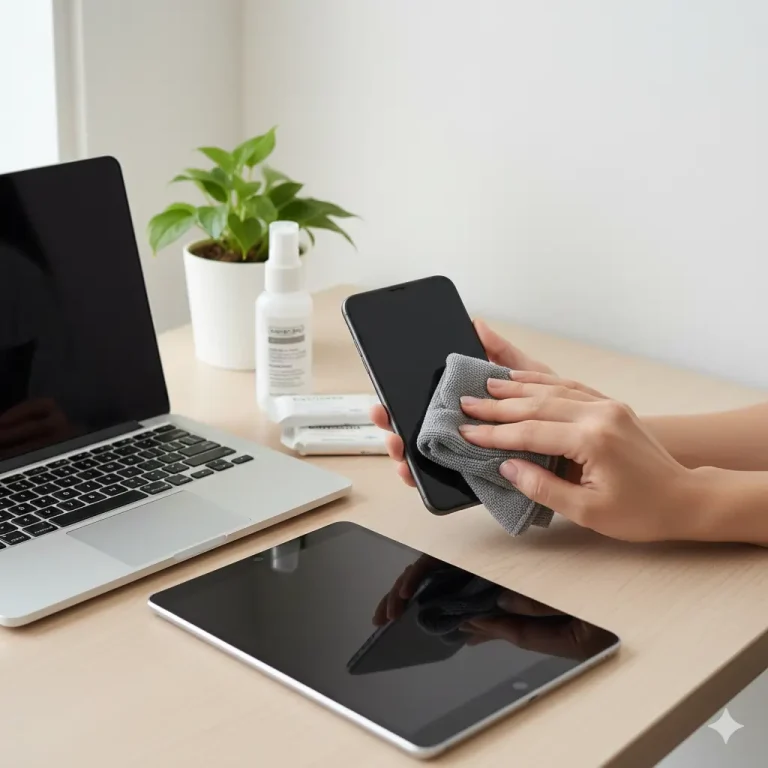
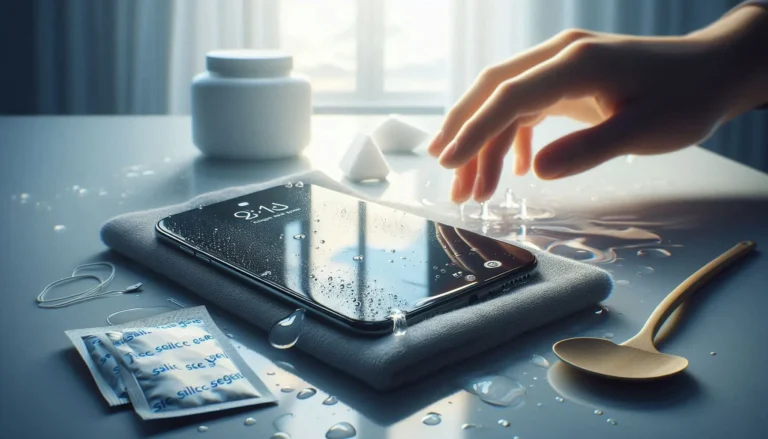
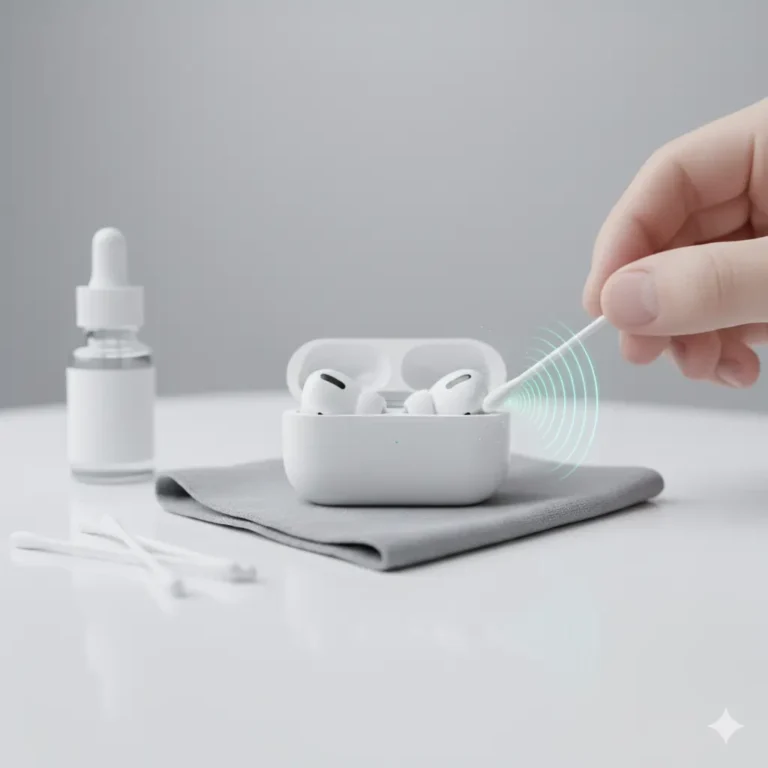
Clean speaker grilles safely using these methods: soft-bristled toothbrush with gentle circular motions, compressed air held 6 inches away at an angle, painter’s tape pressed gently against grilles to lift debris, and microfiber cloth dampened slightly with isopropyl alcohol for stubborn residue.
Critical Warning: Never insert sharp objects, toothpicks, or needles into speaker grilles. This damages delicate speaker mesh and pushes debris deeper into components.
Inspect for visible damage including dented or punctured speaker mesh, water damage indicators (red or pink moisture markers), physical cracks around speaker housing, and misaligned components suggesting drop damage.
4. Test Speaker Output During Phone Calls
Call functionality reveals earpiece speaker health separate from loudspeaker issues. Make a test call to a friend or voicemail service. During the call, toggle speakerphone on and off multiple times, testing both listening modes.
Evaluate these aspects: earpiece clarity during normal calls, loudspeaker volume and clarity in speakerphone mode, microphone pickup quality when others can’t hear you, and whether switching between modes works smoothly.
If the speakerphone works but the earpiece doesn’t (or vice versa), you’ve isolated which speaker component has failed. This distinction helps technicians diagnose problems faster and may save repair costs.
5. Advanced Testing with Third-Party Applications
Professional-grade apps provide detailed acoustic analysis beyond basic sound tests. Top-rated speaker testing applications include:
Speaker Cleaner Apps: These apps generate specific sound frequencies that vibrate speakers to eject water and debris. They’re particularly effective after liquid exposure. Popular options include Speaker Cleaner (iOS/Android), Sonic (Android), and Clear Wave (iOS).
Frequency Generator Apps: Test your speaker’s frequency response across the entire audible spectrum (20Hz-20kHz). Apps like Frequency Sound Generator or AudioTool help identify which frequency ranges have issues. Blown speakers often fail at specific frequencies.
Audio Analyzer Apps: Measure actual decibel output and detect distortion. Apps like Decibel X or Sound Meter provide objective measurements showing whether your speaker meets manufacturer specifications.
Run these systematic tests: sweep through low frequencies (20-200Hz) checking for buzzing or rattling, test midrange frequencies (200Hz-2kHz) where most speech occurs, evaluate high frequencies (2kHz-20kHz) for clarity and treble response, and play pink noise to test overall speaker balance.
6. Restart Your Device and Install Software Updates
Software glitches cause surprising numbers of speaker problems. A simple restart resolves temporary audio routing issues, clears cached audio drivers, resets system audio settings, and terminates conflicting background apps.
Proper Restart Procedure: For iPhones: Press volume up, press volume down, then hold the side button until the Apple logo appears. For Android: Hold power button and select restart, or hold power + volume down for 10 seconds for forced restart.
After restarting, check for system updates immediately. Navigate to Settings > General > Software Update (iOS) or Settings > System > System Update (Android). Manufacturers frequently release patches fixing audio bugs, especially after major OS updates.
Update all audio-related apps including music players, streaming services, calling apps, and system utilities. Outdated app versions sometimes conflict with new OS audio frameworks.
7. Eliminate Bluetooth and Headphone Interference
Your phone might route audio to connected devices instead of speakers, creating the illusion of speaker failure. This common issue wastes countless hours of troubleshooting.
Check Bluetooth Connections: Open Settings > Bluetooth and review all connected devices. Disconnect any headphones, speakers, car audio systems, smartwatches, or hearing aids. Even devices listed as “Not Connected” sometimes capture audio routing.
Verify Headphone Jack Status: If your phone has a 3.5mm jack, inspect it for debris or broken headphone plugs. Phones sometimes detect phantom headphone connections when lint or metal fragments lodge in the jack. Shine a flashlight into the port and look for obstructions.
Test with airplane mode activated (Bluetooth and cellular disabled) to rule out wireless interference. If speakers suddenly work in airplane mode, the issue involves Bluetooth routing or cellular interference.
8. Factory Reset: The Nuclear Option
Factory resets erase all data but resolve persistent software-related speaker issues. This drastic step should only come after exhausting other solutions.
Before Factory Reset: Back up all data using iCloud (iPhone) or Google Drive (Android), save important photos and videos to computer, note down app login credentials, disable Find My iPhone or Find My Device, and ensure you know your Apple ID or Google account password.
Reset Procedure: For iPhone: Settings > General > Transfer or Reset iPhone > Erase All Content and Settings. For Android: Settings > System > Reset Options > Erase All Data (Factory Reset).
After reset, test speakers before restoring backup data. If speakers work on fresh installation but fail after restore, corrupted backup data caused the problem.
When Professional Repair Becomes Necessary-How to Test If Your Phone Speaker Is Working Properly
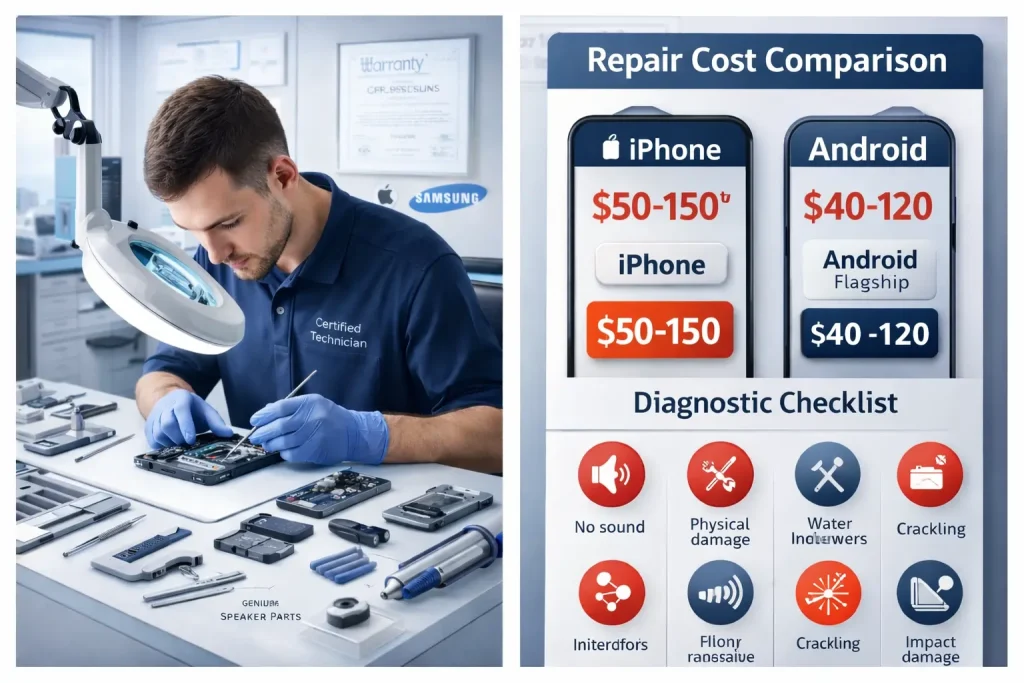
Seek professional help when DIY methods fail. Warning signs requiring expert intervention include no sound from any speaker after all troubleshooting, visible physical damage to speaker components, water damage indicators activated, persistent crackling despite cleaning, and speaker failure immediately after physical impact.
Authorized service centers offer advantages including genuine OEM replacement parts, manufacturer warranty preservation, certified technician expertise, and quality guarantees on repairs. Third-party repair shops cost less but risk voiding warranties and may use inferior components.
Repair Cost Expectations: iPhone speaker replacement: $50-$150 depending on model. Android flagship models: $40-$120 for speaker replacement. Budget Android phones: Sometimes cheaper replacing entire device than repairing.
Get multiple quotes before committing to repairs. Many shops offer free diagnostics helping you make informed decisions.
Preventive Maintenance for Long-Term Speaker Health
Preventing speaker damage beats expensive repairs. Implement these protective measures-How to Test If Your Phone Speaker Is Working Properly:
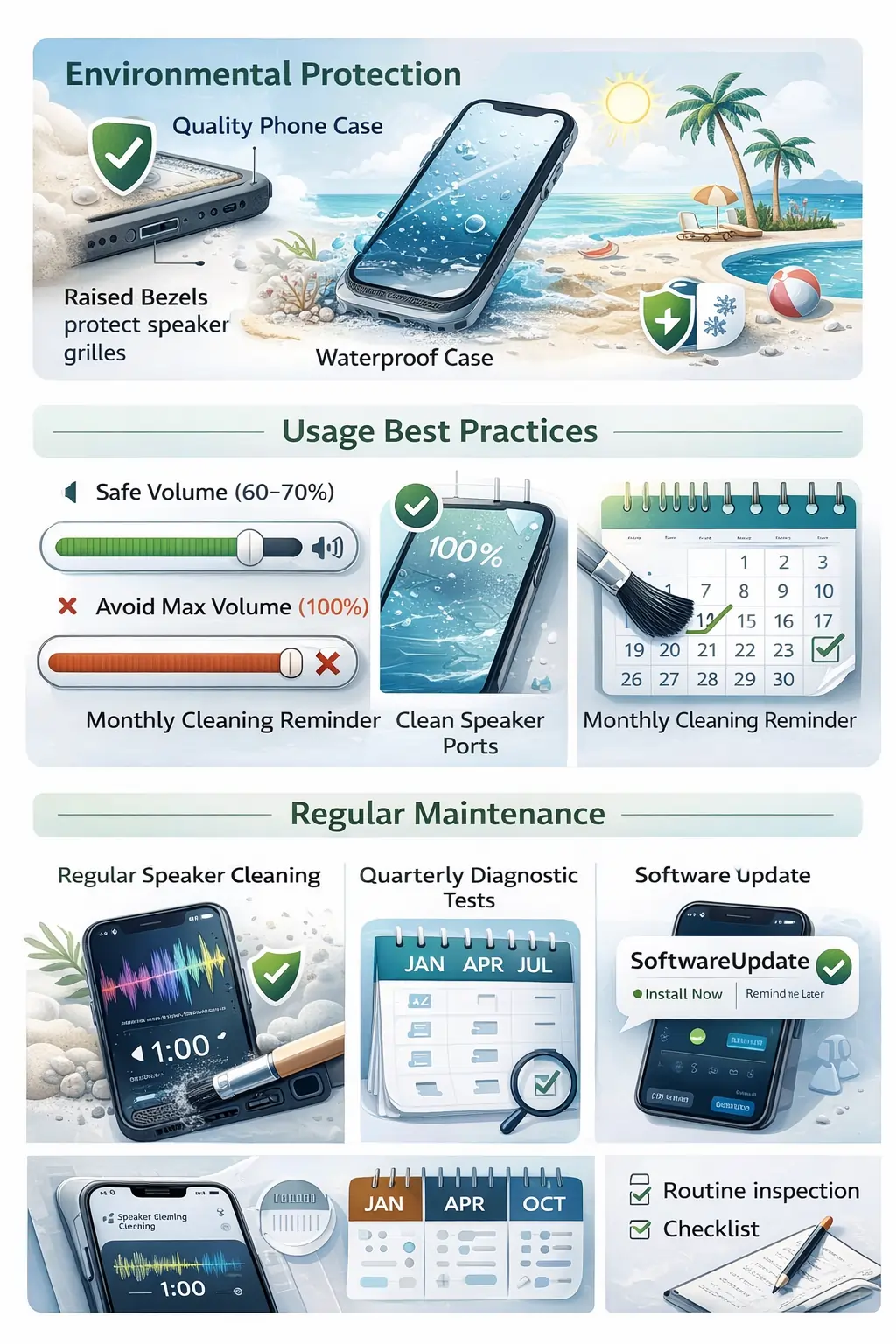
Environmental Protection: Use quality phone cases with raised bezels protecting speaker grilles. Apply waterproof cases for beach, pool, or outdoor activities. Keep phones away from dusty environments. Never expose phones to extreme temperatures affecting speaker adhesives.
Usage Best Practices: Avoid maximum volume for extended periods, as this strains speaker cones. Clean speaker grilles monthly using soft brushes. Keep phones out of pockets with lint and debris. Use screen protectors extending over speaker areas when possible.
Regular Maintenance: Run speaker cleaning frequencies monthly even without issues. Test both speakers quarterly using diagnostic apps. Update software promptly when manufacturers release patches. Inspect speaker grilles during routine phone cleaning.
Understanding Speaker Specifications and Limitations
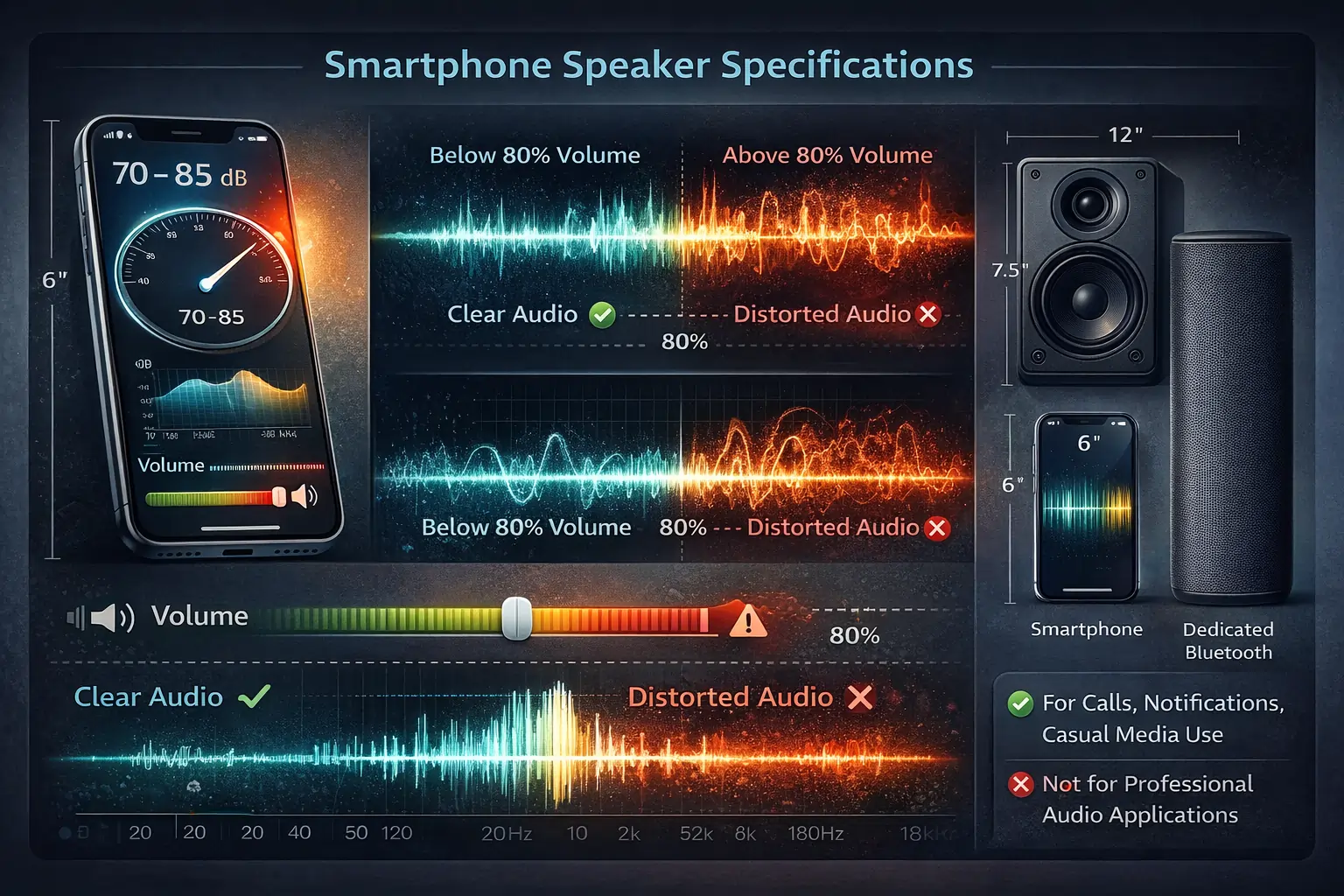
Modern smartphone speakers operate within specific parameters. Typical loudness reaches 70-85 decibels at maximum volume. Frequency response usually spans 200Hz-18kHz (inferior to dedicated speakers). Distortion becomes noticeable above 80% volume on many devices-How to Test If Your Phone Speaker Is Working Properly.
Recognizing these limitations prevents unrealistic expectations. Your phone speaker will never match dedicated Bluetooth speakers or studio monitors. However, properly functioning phone speakers should deliver clear, distortion-free audio for calls, notifications, and casual media consumption.
Dealing with Water-Damaged Speakers
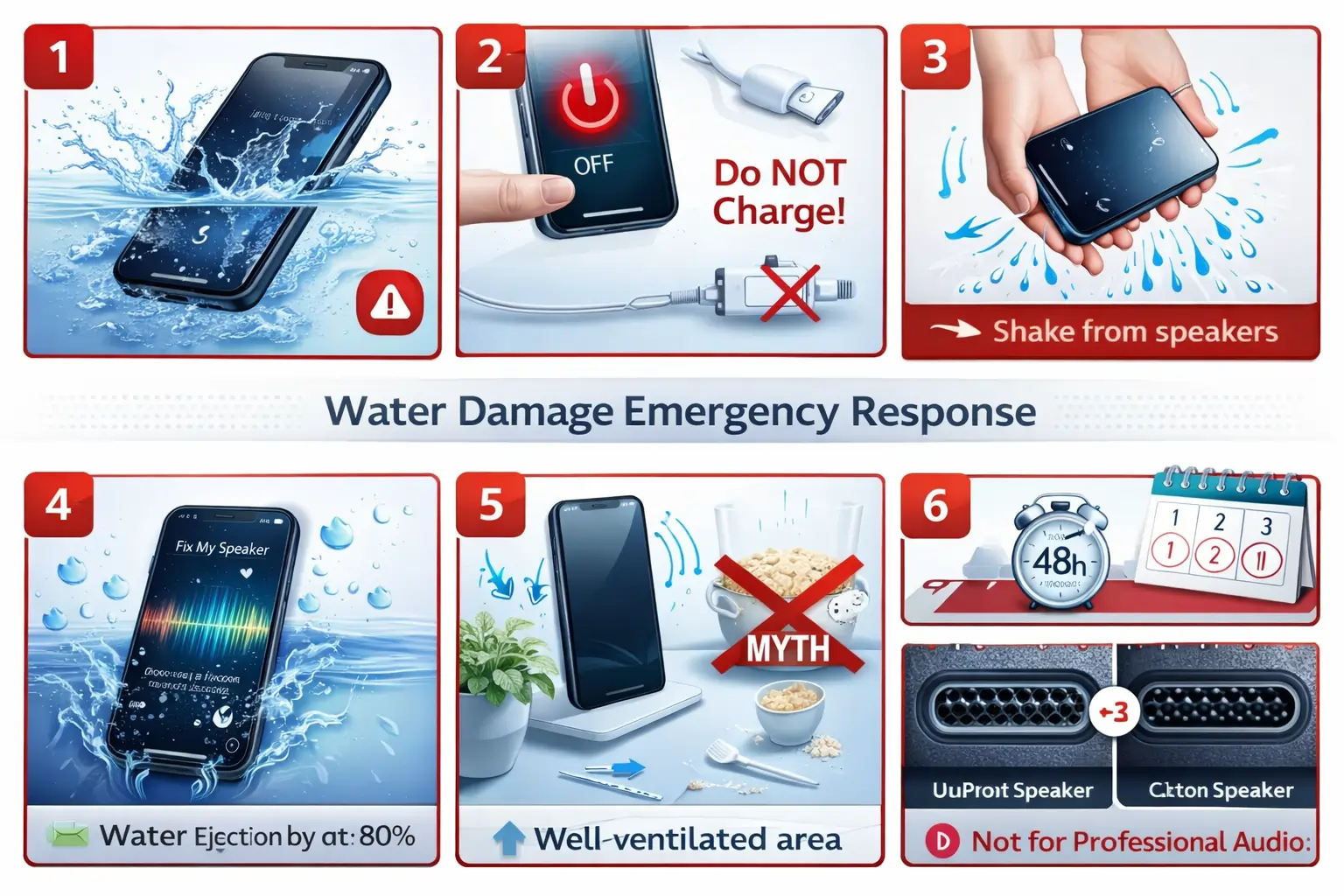
Water damage represents the most common speaker killer. If your phone gets wet, act immediately-How to Test If Your Phone Speaker Is Working Properly:
Power off the device completely to prevent short circuits. Don’t charge wet phones. Gently shake excess water from speaker grilles. Use speaker cleaning frequency apps to vibrate remaining water out. Place phone in dry, well-ventilated area (not rice, which doesn’t help and leaves debris).
Wait 48 hours before powering on. If speakers sound muffled after drying, mineral deposits from water may coat speaker mesh. Professional cleaning with isopropyl alcohol might restore function.
Troubleshooting Specific Sound Issues
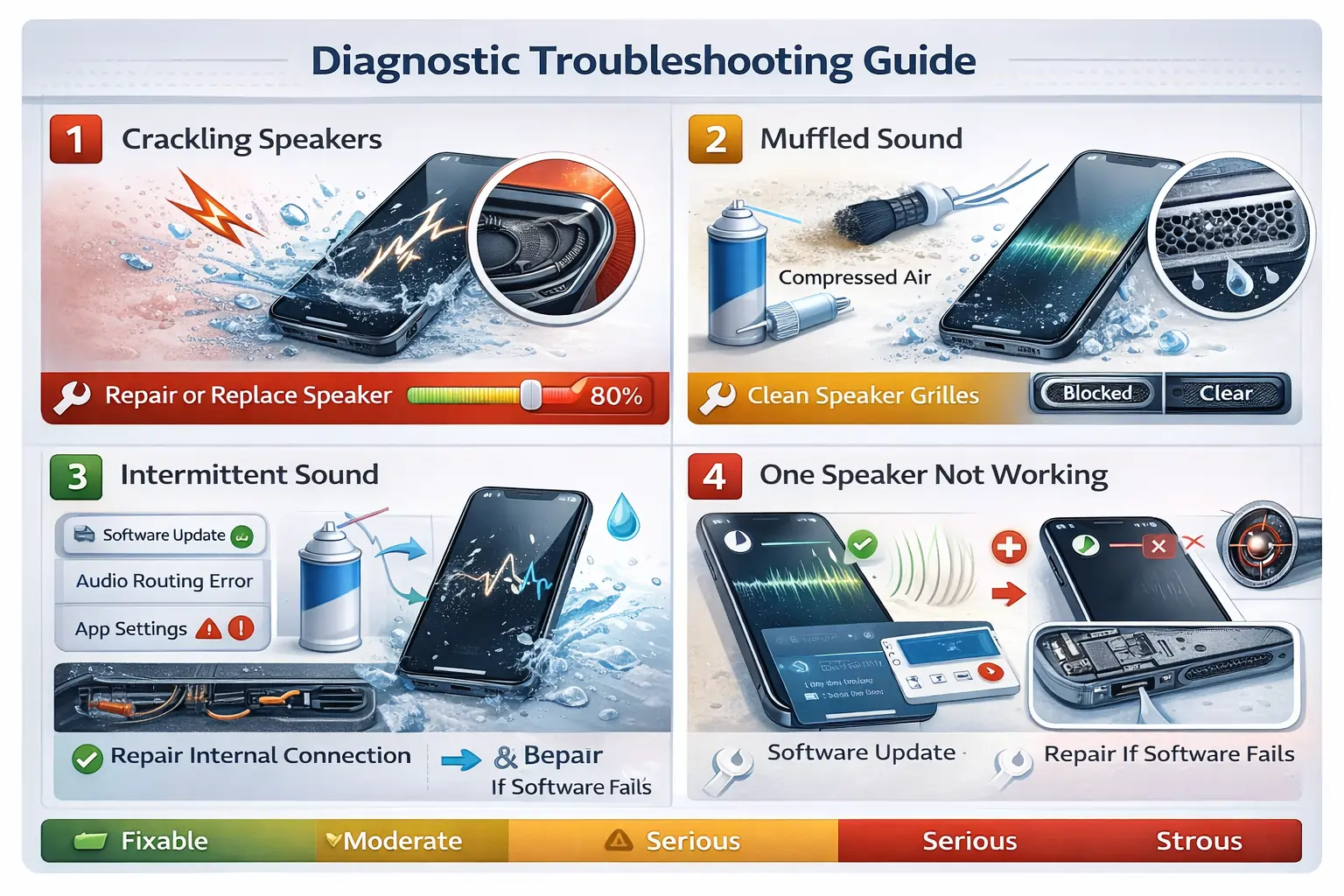
Crackling Speakers: Crackling indicates torn speaker cones or loose connections. Reduce volume to prevent further damage. If crackling only occurs at high volumes, you’re overdriving speakers beyond their limits. If crackling happens at all volumes, physical damage requires professional repair.
Muffled Sound: Muffled audio almost always stems from blocked speaker grilles. Aggressive cleaning with compressed air and soft brushes resolves most cases. Persistent muffling after cleaning suggests water damage or damaged speaker components.
Intermittent Sound: Sound cutting in and out points to loose internal connections, software audio routing issues, or failing speaker hardware. Update software first. If problems persist after updates and restarts, hardware repair becomes necessary.
One Speaker Not Working: When only one speaker fails, you’ve definitively identified hardware problems with that specific component. This simplifies repairs since technicians know exactly which part needs replacement.
Final Thoughts on Speaker Testing and Maintenance-How to Test If Your Phone Speaker Is Working Properly
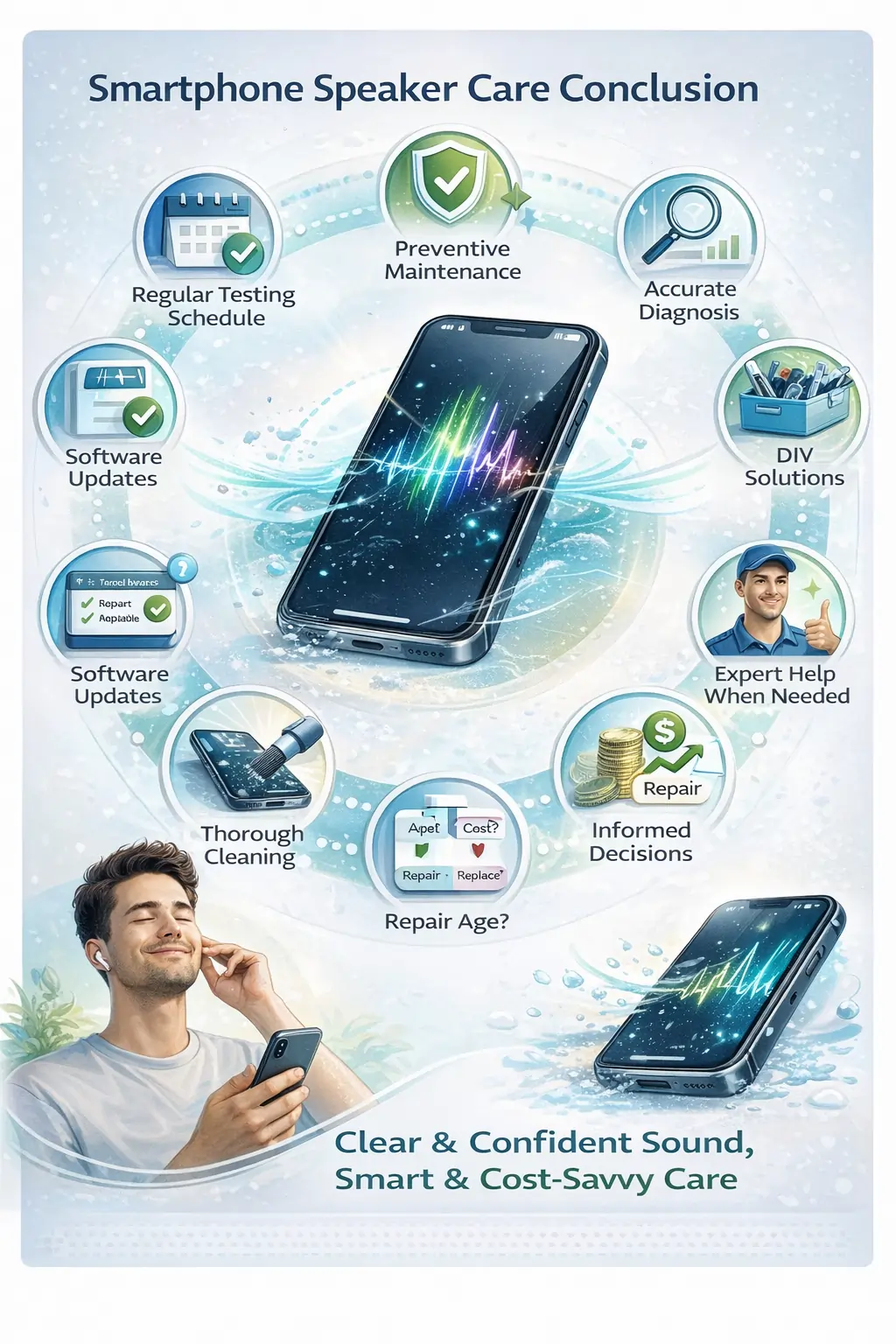
Your phone speaker serves as a critical communication and entertainment component. Regular testing and preventive maintenance extend speaker lifespan and prevent unexpected failures. Following this guide helps you diagnose issues accurately, attempt appropriate DIY solutions, and recognize when professional help becomes necessary.
Remember that speaker problems don’t always mean expensive repairs. Software issues, debris blockage, and incorrect settings account for many perceived speaker failures. Systematic troubleshooting using these methods resolves the majority of issues without spending a dime.
When repairs become inevitable, make informed decisions based on phone age, repair costs, and device value. Sometimes replacing aging devices makes more financial sense than expensive speaker repairs-How to Test If Your Phone Speaker Is Working Properly.
Keep your speakers clean, updated, and protected. Your ears will thank you .
If your phone speaker still isn’t working after trying all the basic fixes, it’s a good idea to check the manufacturer’s official troubleshooting guide. For detailed instructions on water ejection, audio issues, and safe repair steps, visit Apple Support’s official guide for expert guidance.
Related Posts